 > Live Support Edition
> Live Support Edition
> Live Support Edition
Instructions
 For having best experience with this application we recommend updating to latest flash player: http://get.adobe.com/flashplayer/ .
 To avoid echo make sure your microphone is not pointed to your speakers or use headphones.
 Allow flash to send your stream and select the right video and audio devices you want to use:
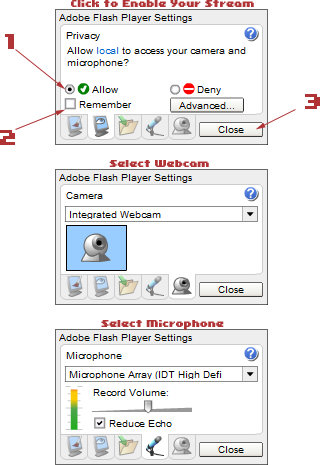 |
When the application starts, flash will ask you if you want to start streaming your camera and microphone. Click in this order:
Flash settings will also show for changing camera or microphone device. Hardware selection can be started in 2 ways: Depending on computer hardware and installed drivers multiple audio video devices can be availabe including internal/external cameras, tuners, virtual screen sharing drivers. If you don't know which one is the webcam you want to use, just try each item in the list. |